1. Event Calibration & Master
Step 12. Live Stage Display
Step 2
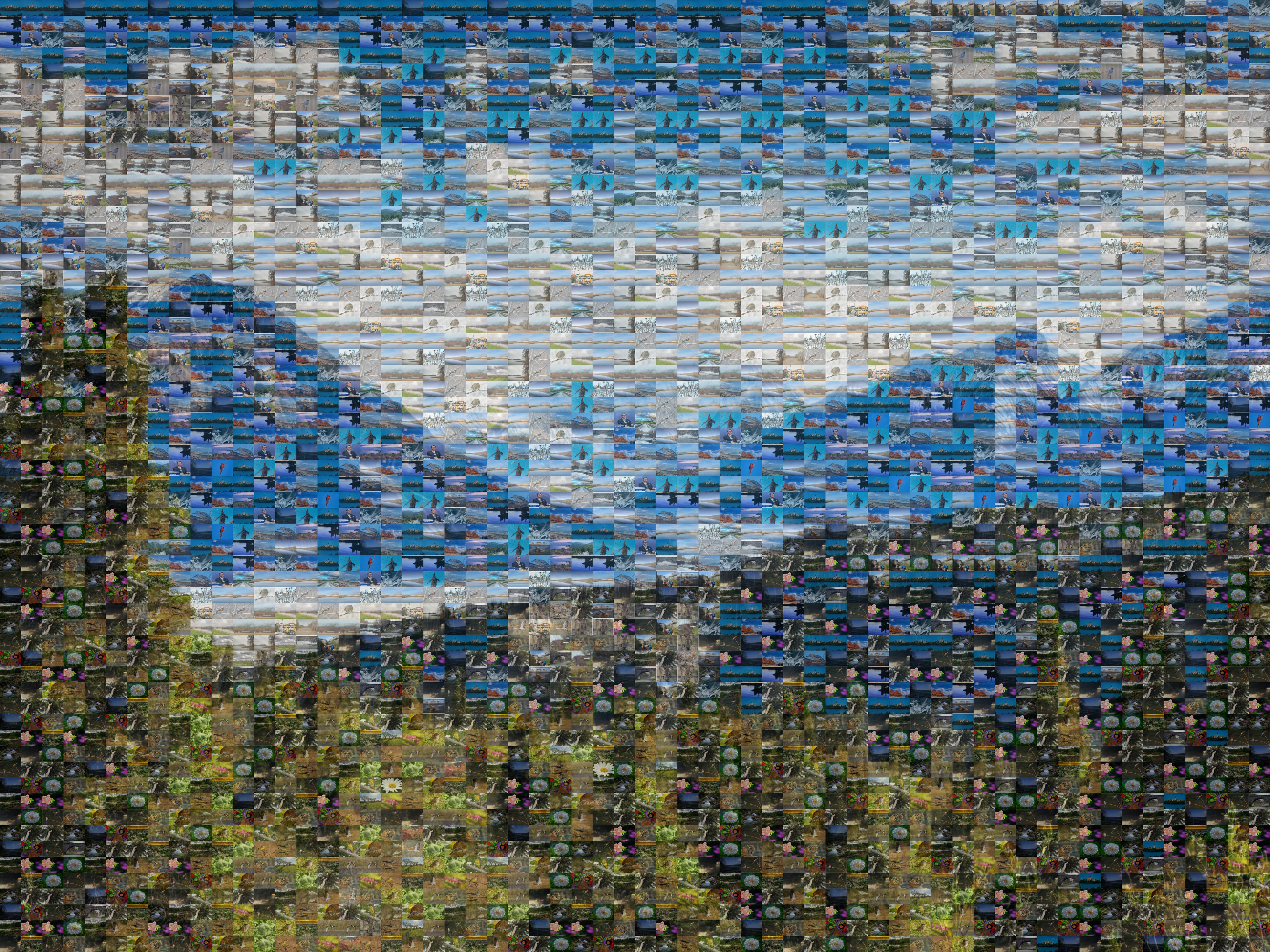
Live Event Photo Mosaic Wall & Collaborative Stage Display
Transform every guest's smartphone into a live camera for your celebration. As attendees snap candid moments, their photos fly in real time onto the venue's projector or LED wall, collaboratively constructing a breathtaking portrait or brand centerpiece.
Complete Event Setup Walkthrough
Follow these simple steps to set up your live photo mosaic wall from start to finish.
Add Event Title & Custom Link
Type your celebration name so guests recognize it. Then choose a short custom link (slug) like sarah-ali that guests can easily open on their phones.
Upload Your Master Photo
Click the upload box or drag and drop your main picture. Choose a bright photo with clear contrast, such as a smiling couple, a portrait, or a company logo.
Choose When Your Event Starts
Select Live Today if your party is happening right now (keeps your screen active for 24 hours). Select Schedule for Later if your event is on a future date.
Fine-Tune Style, Tiles & Limits
Switch to the Fine-Tune tab. Pick a preset (Wedding, Corporate, Gala, Fine Art). Adjust grid density (tile count), color overlay, and the guest upload limit.
Test Uploads on Your Smartphone
Click ⚡ Live Testing in the header. Scan the test QR code with your phone camera, upload a test photo, and watch it fly onto the screen in seconds.
Connect Venue Screen & Go Live
Click Save & Go Live. Print folded table tent cards for tables. Plug an HDMI cable from your laptop into your projector. When done, download your 300 DPI print file!
Frequently Asked Questions
Everything event directors, wedding couples, and venue hosts need to know.
Do guests need to download an app or create an account to upload photos?
Never. Guests simply aim their normal smartphone camera at the table QR code. It opens a clean, lightweight web portal directly in Safari or Chrome. No downloads, no passwords, and no friction—allowing even non-tech-savvy guests to participate in seconds.
What happens if guests upload more photos than the initial grid capacity?
MosaicPulse is engineered with dynamic quadtree subdivision. If your guest uploads approach 100% capacity, clicking "Subdivide (4x)" instantly quadruples the grid slots (e.g. from 1,200 tiles to 4,800 micro-tiles) while preserving every photo already placed on the screen.
What hardware and internet setup do we need at our venue?
All you need is any standard laptop (Mac or PC) connected via HDMI or wireless casting to your venue's projector, TV screen, or LED wall. MosaicPulse runs directly in the browser and features offline-resilient caching, meaning it operates smoothly even on standard hotel Wi-Fi or a cellular hotspot.
Can we moderate or delete inappropriate photos during the live event?
Yes. As the host, your calibration console provides real-time moderation visibility. You can view all incoming guest uploads and remove any photo with a single click, instantly removing it from the big screen stage display.
Can we print the completed mosaic after our wedding or gala?
Yes! When you wind up the celebration, MosaicPulse exports a museum-grade 300 DPI high-resolution TIFF/PNG file suitable for large physical prints up to 40×60 inches on gallery-wrapped canvas, acrylic glass, or fine art paper.
How does MosaicPulse compare to expensive physical photo booth rentals?
Traditional photo booth agencies typically charge $2,500 to $5,000 for physical sticker walls and require attendants and hardware setup. MosaicPulse delivers a superior, high-engagement digital experience that you control directly from your laptop at a fraction of the cost.